
Your computer does not usually announce that it is about to fail. More often, it gives you clues: routine jobs take longer, applications freeze, the fan roars, or the device needs another repair. For a business, those warning signs can mean lost staff time, disrupted customer service and an unplanned scramble to find a replacement.
But a slow computer is not automatically an old computer. A network fault, full storage drive, faulty application, malware or an update can create similar symptoms. Before spending money, it is worth working out whether the problem is the computer itself and whether repair remains sensible.
Here are eight warning signs that a business computer may be nearing the end of its useful life, and what to do next.
1. Everyday tasks are getting slower
If signing in, opening files, launching essential applications or switching between tasks has become consistently slower, the device may be struggling with the work expected of it. This is especially noticeable when several business applications are open at once.
Look for a pattern. Is one particular application slow, or does the whole computer lag? Does the issue affect one person or several? If several devices are slow at the same time, investigate shared causes such as Wi-Fi, internet access, a server, cloud service or business application before blaming the computers.
If the slowdown is limited to one device and continues after routine maintenance, its processor, memory or storage may no longer meet the team’s needs. An assessment can identify which component is the bottleneck and whether an upgrade is practical.
2. Freezing, crashing or restarting has become common
Occasional software problems happen. Repeated lock-ups, blue-screen errors, unexpected restarts or applications that stop responding are more concerning, particularly when they interrupt important work or become more frequent.
The cause could be faulty memory, storage problems, damaged system files, incompatible software, overheating or a driver issue. Keep a note of when the problem occurs and any error messages. Repeated crashes should be investigated promptly so that a small fault does not become data loss or a longer outage.
3. You hear new noises or notice unusual heat
Loud fans can signal that a computer is working hard or struggling to cool itself. A desktop or laptop that becomes unusually hot, shuts down under load, or has vents blocked by dust needs attention. In a device with a mechanical hard drive, repeated clicking or grinding can be a warning of a drive fault.
Do not ignore a battery that is swollen, pushing the case or trackpad out of place, or giving off an unusual smell. Stop using and charging the device, keep it away from flammable materials, and arrange professional advice. Do not press, puncture or try to remove a swollen battery yourself.
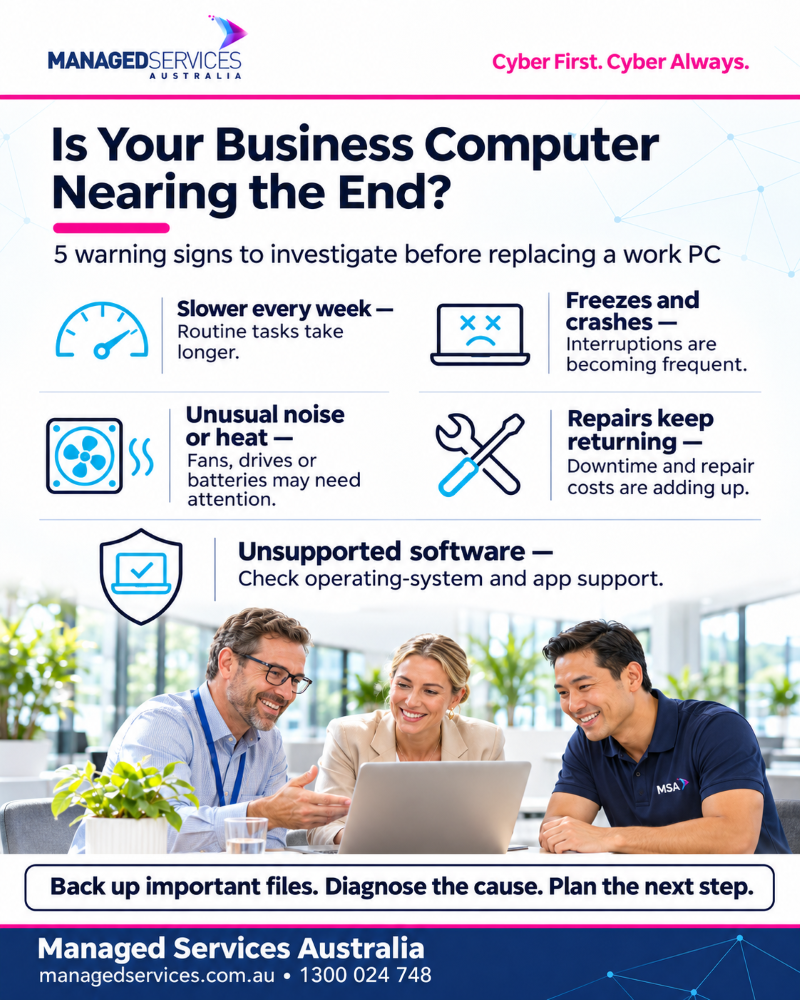
4. Repairs and downtime keep returning
A single repair can be worthwhile. A pattern of recurring faults, repeated service calls and lost work time may point to a device that is becoming unreliable. Add up more than the repair invoice: include staff downtime, delayed work, temporary devices and the time spent restoring settings and applications.
If a machine is essential to a role, its impact on the business matters as much as its age. A replacement may be justified sooner for a front-desk, finance or production workstation than for a spare device used occasionally.
5. There is not enough memory or storage for the real workload
Modern business work can involve a browser with many tabs, Microsoft 365 applications, video calls, security software and specialist programs running together. A computer with limited memory or a nearly full drive may struggle even when it is otherwise healthy.
An upgrade to memory or a solid-state drive can sometimes extend a computer’s useful life. First check that the hardware supports the upgrade and that it will resolve the actual bottleneck. If the processor is also too old for the job, or the device is not compatible with required software, putting money into one component may only postpone replacement briefly.
6. The computer cannot run supported operating systems or required applications
Compatibility is a major replacement signal. Check whether the device can run a currently supported operating system and whether the software your business depends on will continue to support it.
For example, Windows 10 support ended on 14 October 2025. Windows 10 PCs still operate, but standard support and security updates have ended; organisations should review their upgrade or other supported security options. A machine that cannot move to a supported operating system may need to be replaced as part of a planned upgrade.
Do not rely on unofficial workarounds to install an operating system on hardware that does not meet its requirements. Check the device manufacturer’s guidance, Microsoft’s compatibility information and the requirements of business-critical software before making a decision.
7. The computer is no longer suitable for secure business use
Older devices can become harder to protect when they cannot receive operating-system or firmware updates, run current endpoint security tools, or meet the controls your organisation needs. A computer may still turn on and perform basic tasks while being an unsuitable place to access business email, customer records or financial systems.
Review patch status, device health, encryption, security software and access requirements with your IT provider. Replacement planning should include a secure setup, approved software, user access, backups and safe disposal of the old device—not just buying new hardware.
8. The device no longer fits the way people work
Perhaps the computer cannot handle video meetings reliably, has too few ports for required equipment, has a failing screen or keyboard, or cannot support a new application. The device may technically work but still make routine work difficult or encourage staff to find unsafe workarounds.
Talk to the person using it and document what they need to do. A replacement should be selected for the job, not simply chosen by the lowest price or the highest specification. Confirm requirements for the operating system, business applications, memory, storage, warranty, security and any peripherals before ordering.
What to do before replacing a business computer
Start with a diagnosis. Record the symptoms, when they began, whether they are getting worse and what work is affected. Check whether the issue is isolated to one device. Review available storage, resource use, update status, device age and compatibility with the software the employee needs.
Before any repair or replacement, confirm that important files are backed up and that the backup can be accessed. Identify locally stored data, browser favourites, application settings, licences, email or accounting data, and any special peripherals. For a business computer, migration planning helps avoid a new device that arrives but cannot be used productively.
Then compare repair, upgrade and replacement based on the device’s expected remaining life, reliability, security, staff impact and total cost. If several computers are close to the same age, a staged refresh plan can spread spending and reduce the risk of multiple failures at once.
A slow computer is a signal to investigate
Repeated crashes, unusual heat, rising repair costs and unsupported software are all reasons to review a computer. They do not each prove that it must be replaced. The right decision comes from identifying the cause, checking compatibility and security, and weighing the cost of continued downtime against a planned upgrade.
🌐 Explore our services at Managed Services Australia.
📧 Dial 1300 024 748, shoot us an email at [email protected], or schedule a session with one of our IT specialists.