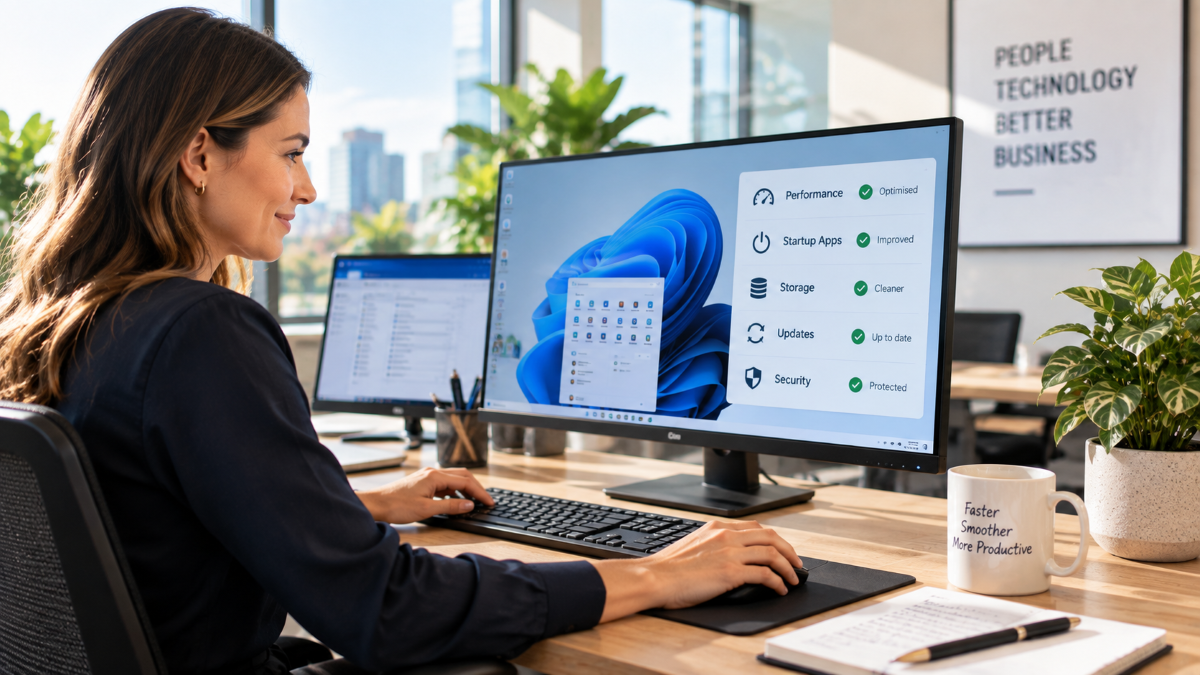
A slow Windows PC can turn simple tasks into frustrating ones. Applications take longer to open, video meetings freeze, files are slow to save and staff lose valuable time waiting for their computer to respond. The good news is that poor performance does not always mean you need to replace the device.
In many cases, you can speed up a Windows PC by reducing unnecessary start-up programs, installing updates, freeing storage space and identifying applications that are consuming too many resources. In other cases, persistent slowness can point to ageing hardware, malware, overheating or a wider IT issue that needs professional attention.
This guide explains 12 practical ways to improve Windows performance, along with the warning signs that it may be time to speak with an IT support provider.
Before you begin: If your computer is managed by your employer or IT provider, check with them before uninstalling software, changing security settings or installing new tools. Business devices may have policies and security applications that should not be altered.
1. Restart your Windows PC
It sounds simple, but restarting is one of the quickest ways to improve a sluggish Windows computer. A restart clears temporary processes, releases memory and completes updates that may be waiting in the background.
This is particularly helpful if you normally close the laptop lid or leave the computer running for days at a time. Sleep mode is convenient, but it does not provide the same clean start as a proper restart.
Save your work, open the Start menu, select Power, then choose Restart. If performance improves immediately but becomes slow again soon afterwards, a background application or service may be responsible.
2. Install Windows and driver updates
Windows updates often contain security fixes, stability improvements and performance enhancements. An outdated driver can also cause slow graphics, unreliable Wi-Fi, poor audio or problems with connected devices.
In Windows 11, go to Settings > Windows Update and select Check for updates. Install approved updates and restart the computer when prompted. Optional driver updates should be approached more carefully on business devices, as your IT provider may test and manage drivers centrally.
If the computer is still running Windows 10, be aware that standard support ended on 14 October 2025. A compatible upgrade to Windows 11, an approved extended-support arrangement or replacement hardware may now be required to keep the device secure and supported.
3. Disable unnecessary start-up applications
Some programs launch automatically every time Windows starts. A few are useful, but too many can increase boot time and consume memory throughout the day.
To review them, open Settings > Apps > Startup. You can also open Task Manager, select Startup apps and review the listed impact of each program. Disable applications you recognise and do not need immediately after signing in.
Do not disable antivirus, endpoint protection, backup, device-management or monitoring software. If you are unsure what an application does, leave it enabled and ask your IT support team.
4. Check which programs are using the most resources
Task Manager can help reveal why a Windows PC is slow. Press Ctrl + Shift + Esc, then review the Processes and Performance sections.
Look for applications consistently using a high percentage of:
- CPU, which can make the entire computer feel unresponsive;
- Memory, which can force Windows to rely on slower storage;
- Disk, especially if usage remains close to 100 per cent; or
- Network, which can affect cloud applications and video calls.
A temporary spike is normal. Constant high usage may indicate a stuck application, an oversized browser session, a failed update, insufficient memory or unwanted software. Save your work before closing a program, and do not end unfamiliar Windows or security processes.
5. Free up storage space
Windows needs free storage for updates, temporary files, application data and virtual memory. When the main drive is nearly full, performance and reliability can decline.
Open Settings > System > Storage to see what is using space. Windows Storage Sense can remove selected temporary files and routinely clear unneeded content. You can also:
- empty the Recycle Bin after checking its contents;
- remove installers and downloads you no longer need;
- uninstall unused applications;
- move approved business files to your organisation’s managed cloud storage; and
- archive large media files appropriately.
Avoid downloading third-party “PC cleaner” or registry-cleaning utilities. They are rarely necessary and may introduce unwanted software or damage Windows settings. Never delete business records simply to make space; follow your organisation’s retention and backup requirements.
6. Uninstall software you no longer use
Old applications take up storage and may run background services even when you are not actively using them. Go to Settings > Apps > Installed apps, sort the list by size or installation date and review what is present.
Only remove programs you recognise and no longer require. On a workplace computer, software may be needed for security, remote support, printing, line-of-business systems or compliance, even if it is not opened directly by the user. When in doubt, ask IT first.

7. Reduce browser load
Modern browsers can use a substantial amount of memory, especially when dozens of tabs and multiple extensions are open. Close tabs you no longer need, remove untrusted extensions and restart the browser periodically.
Both Microsoft Edge and Google Chrome include built-in features that reduce the resources used by inactive tabs. Enabling these features can improve responsiveness without forcing you to close every tab.
If only web-based systems feel slow, the problem may be the browser, internet connection, DNS, Wi-Fi or the cloud service itself—not the Windows PC. Testing another approved browser or a wired network connection can help narrow down the cause.
8. Scan for malware and unwanted applications
Malware, adware and potentially unwanted programs can consume resources, display pop-ups, change browser settings and place business information at risk.
Use your organisation’s approved endpoint security platform to run a scan. For a personal computer, open Windows Security > Virus & threat protection and review the available scan options. Keep security protection enabled and updated.
Be cautious if a website claims your computer is infected and asks you to call a number, install remote-access software or pay immediately. Close the browser and contact a trusted IT professional. For business computers, do not install a second antivirus product over the existing managed security platform unless your provider instructs you to do so.
9. Adjust visual effects
Windows uses animations, transparency and other visual effects to create a polished experience. On an older computer, reducing these effects may make menus and windows feel more responsive.
Search the Start menu for Adjust the appearance and performance of Windows. You can choose Adjust for best performance or manually retain the features you prefer. This will not transform severely outdated hardware, but it can provide a modest improvement on lower-powered devices.
10. Check power mode and temperature
A laptop in an energy-saving mode may deliberately reduce performance to extend battery life. Go to Settings > System > Power & battery and review the power mode. When plugged in, a more performance-focused setting may help, although it can increase power use, fan noise and heat.
Overheating can also cause a computer to slow itself down. Use the device on a firm, ventilated surface, keep air vents clear and avoid placing a laptop on soft furnishings. Loud fans, excessive heat or unexpected shutdowns should be investigated rather than ignored. Internal cleaning and repairs should be performed by a qualified technician.
11. Consider a RAM or SSD upgrade
Software changes can only go so far. If the computer regularly runs out of memory or still uses an older mechanical hard drive, a hardware upgrade may deliver a significant improvement.
For many business users, 16 GB of RAM is a practical starting point, while demanding applications may require 32 GB or more. A solid-state drive, or SSD, is considerably faster than a traditional hard disk for starting Windows, opening programs and accessing files.
Not every laptop can be upgraded, and hardware must be compatible with the specific model. Before purchasing parts, compare the cost of the upgrade with the cost, warranty and expected lifespan of a replacement business-grade computer.
12. Reset Windows only as a last resort
Windows includes recovery options that can reinstall the operating system. A reset may resolve serious software corruption, but it can also remove applications, settings and—in some modes—personal files.
Do not reset a business PC without consulting your IT provider. Confirm that all required information is backed up, recovery keys are available, business applications can be reinstalled and the device can be reconnected to company security and management systems.
Why is my Windows PC still slow?
If the steps above do not improve performance, the underlying cause may require deeper investigation. Common causes include:
- failing storage or memory;
- thermal problems or dust build-up;
- insufficient hardware for current workloads;
- damaged Windows system files;
- malware or unauthorised software;
- slow internet, Wi-Fi or DNS performance;
- cloud synchronisation problems;
- a poorly performing business application or server; or
- device-management policies and updates that are not applying correctly.
A professional assessment can separate a local computer problem from a network, cloud or security issue. This avoids spending money on replacement hardware when the real bottleneck is elsewhere.
A faster PC is also about good IT management
For a business, computer performance is not just a convenience. Slow devices interrupt staff, delay customer service and create pressure to use unsafe workarounds. Consistent patching, proactive monitoring, managed cybersecurity, reliable backups and planned hardware replacement all help prevent performance problems from becoming recurring disruptions.
Managed Services Australia provides managed IT services and business IT support for organisations across Melbourne. We help businesses monitor Windows devices, resolve performance issues, improve cybersecurity and plan technology upgrades around their operational needs.
If your Windows PCs are slowing your team down, contact Managed Services Australia on 1300 024 748 or visit www.managedservices.com.au to discuss practical, business-focused IT support.
🌐 Explore our services at Managed Services Australia.
📧 Dial 1300 024 748, shoot us an email at [email protected], or schedule a session with one of our IT specialists.